Ubisoft Connect Download Speed Issues: A Troubleshooting Guide
Is your Ubisoft Connect download speed slower than molasses in January? Don't despair! Many gamers experience frustratingly slow download speeds from Ubisoft Connect. This guide provides a step-by-step approach to troubleshooting and optimizing your download speeds, moving you from agonizing waits to lightning-fast game installations. We'll cover simple settings, network checks, and even advanced troubleshooting techniques for tech-savvy players.
1. Check Ubisoft Connect's Download Settings
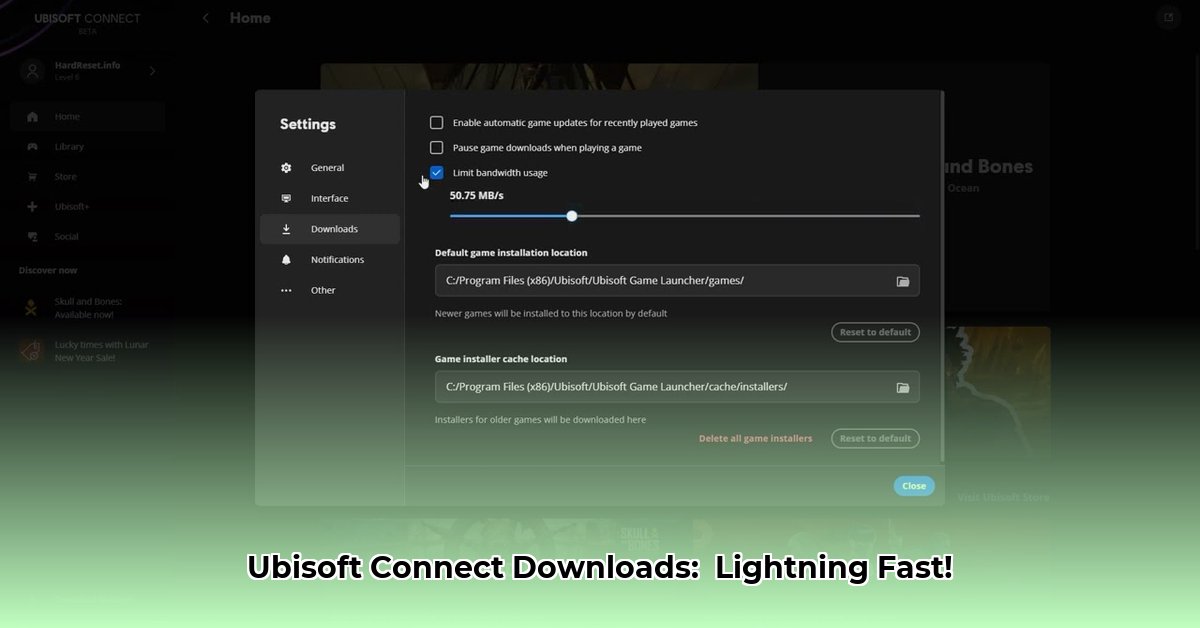
Before diving into complex network configurations, let's start with the simplest solution: Ubisoft Connect's own download settings. You might be surprised to find an accidentally imposed download limit hindering your progress.
Open Ubisoft Connect: Launch the Ubisoft Connect application.
Access Settings: Locate the settings icon (usually a gear icon) – it might be in the top right corner or the bottom of the client window. Click it.
Navigate to Download Settings: Within the settings menu, look for a section related to downloads, network, or connections. You might need to browse through sub-menus.
Adjust Download Limits: Find the option to set your download speed. This could be a numerical value (KB/s or MB/s) or a preset like "Slow," "Medium," "Fast," or "Unlimited." If it's not set to "Unlimited," adjust it to the highest setting (or remove any specific limit).
Restart Download: After making changes, close the settings menu and restart your game download. Has your speed improved? If so, congratulations!
2. Investigate Your Internet Connection
Your internet connection is the backbone of any download. If your connection is slow, your Ubisoft Connect downloads will suffer, regardless of your settings.
Conduct a Speed Test: Use a reliable online speed test (like Ookla's Speedtest.net) to measure your download and upload speeds. Compare these results to the speed you're paying for from your Internet Service Provider (ISP). A significant discrepancy might indicate a problem with your internet plan, modem, or router. Are you getting the speeds you're paying for?
Restart Your Router and Modem: A simple reboot can often resolve minor network glitches. Unplug your router and modem from the power outlet, wait 30 seconds, and plug them back in. Allow a few minutes for them to fully restart before retesting your speed.
Identify Bandwidth Hogs: Streaming 4K videos, online gaming, or other large file transfers on other devices can significantly reduce the bandwidth available for your Ubisoft Connect downloads. Try temporarily pausing these activities to see if it improves download speed. Consider a wired Ethernet connection (especially for your gaming PC) for greater stability.
3. Identifying Potential Bottlenecks
Sometimes, slow download speeds stem from issues external to Ubisoft Connect and your immediate network.
Ubisoft Server Status: Check Ubisoft's website or social media channels for reports of server outages, high traffic, or maintenance. If Ubisoft is experiencing problems, unfortunately, there's little you can do except wait.
Firewall/Antivirus Interference: Your firewall or antivirus software might be blocking Ubisoft Connect. Temporarily disable them (proceed cautiously and only for testing purposes). If your download speed improves, configure your security software to allow Ubisoft Connect.
Background Applications: Many applications running simultaneously will consume system resources. Close unnecessary programs and browser tabs to free up resources and see if download speeds improve. Does closing unnecessary applications make a difference?
4. Advanced Troubleshooting (Optional)
These steps are for users comfortable with network configurations.
Port Forwarding: Ubisoft Connect may use specific ports for communication. If you are familiar with port forwarding on your router, you can try forwarding the necessary ports. This can sometimes improve connection stability and download speeds. Consult your router's manual or Ubisoft's support site for information on the appropriate ports. Have you considered port forwarding?
Network Diagnostics: Use your operating system's built-in network diagnostic tools (such as
pingortracerton Windows) to check network connectivity, latency, and routing. Interpreting these results requires technical knowledge.
5. Contact Ubisoft Support
If you've exhausted all troubleshooting options and still face slow download speeds, contact Ubisoft Support. Clearly describe your issue, include the steps you've already taken, speed test results, and any error messages encountered. They can investigate potential account-specific or regional issues.
Remember, troubleshooting slow downloads is often a process of elimination. By systematically addressing each potential cause, you'll vastly increase your chances of pinpointing the problem and, finally, enjoying those fast downloads!
⭐⭐⭐⭐☆ (4.8)
Download via Link 1
Download via Link 2
Last updated: Friday, May 02, 2025